Playwrite Font in InDesign
Fix Cursive Letters Not Joining Up
Google’s Playwrite font works great everywhere - except InDesign refused to render the joined-up cursive version. The fix was buried in a paragraph panel option, but not the paragraph panel you’d think. To get to it you need to open the Window > Type & Tables > Paragraph menu to get the relevant settings. Classic Adobe.
QUICK FIX:
Open Window > Type & Tables > Paragraph (not the Properties side panel). Click the flyout menu (top right of the panel). Switch from Adobe Paragraph Composer to Adobe World-Ready Paragraph Composer.
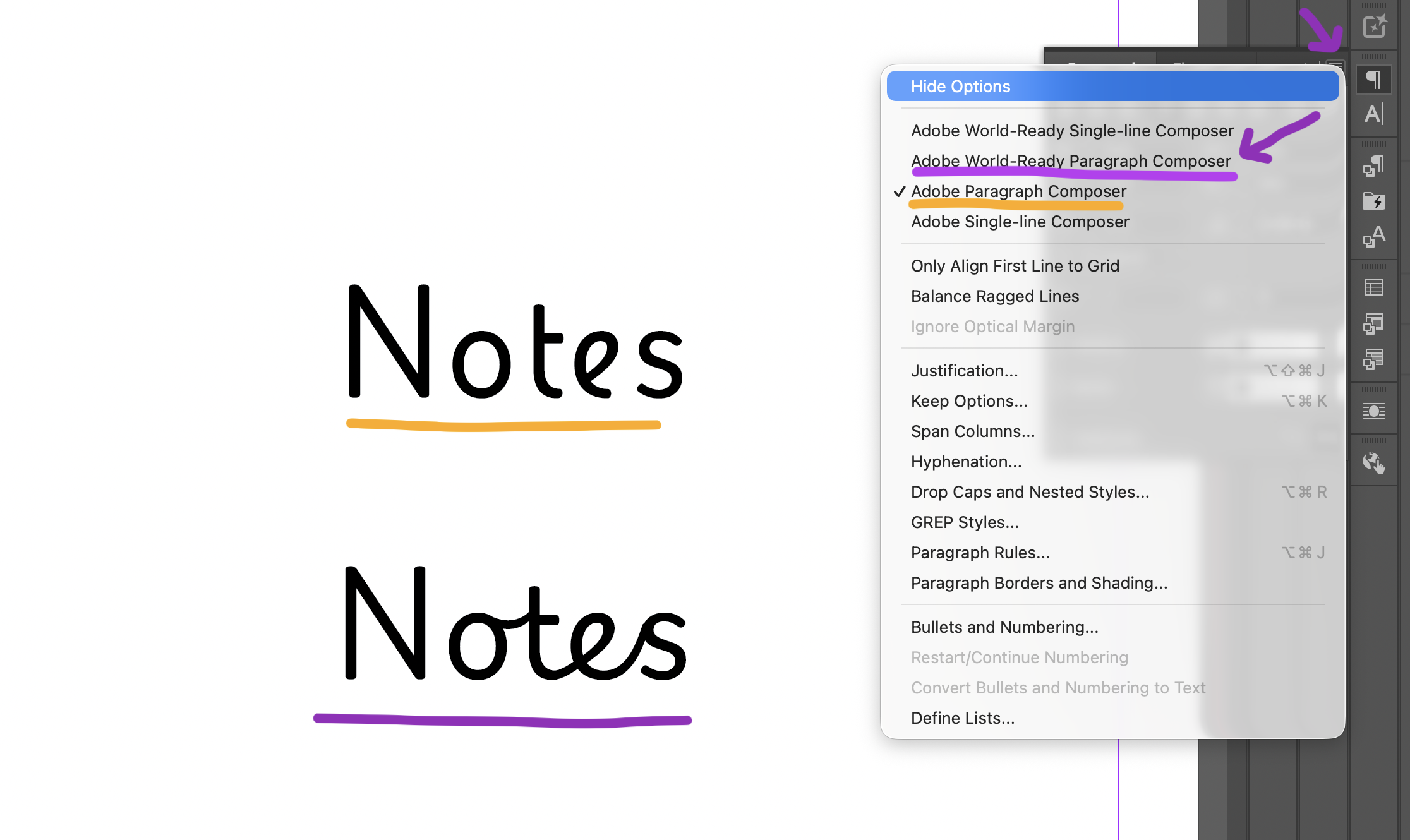
Playwrite Letters Not Connecting
When I started making handwriting resources, Google’s Playwrite font was a brilliant find. It’s free, it’s on Google Fonts, and it comes with country-specific variants - proper joined-up handwriting styles for different regions. Works on the web, works in Photoshop, works in… well, not in InDesign. At least not out of the box.
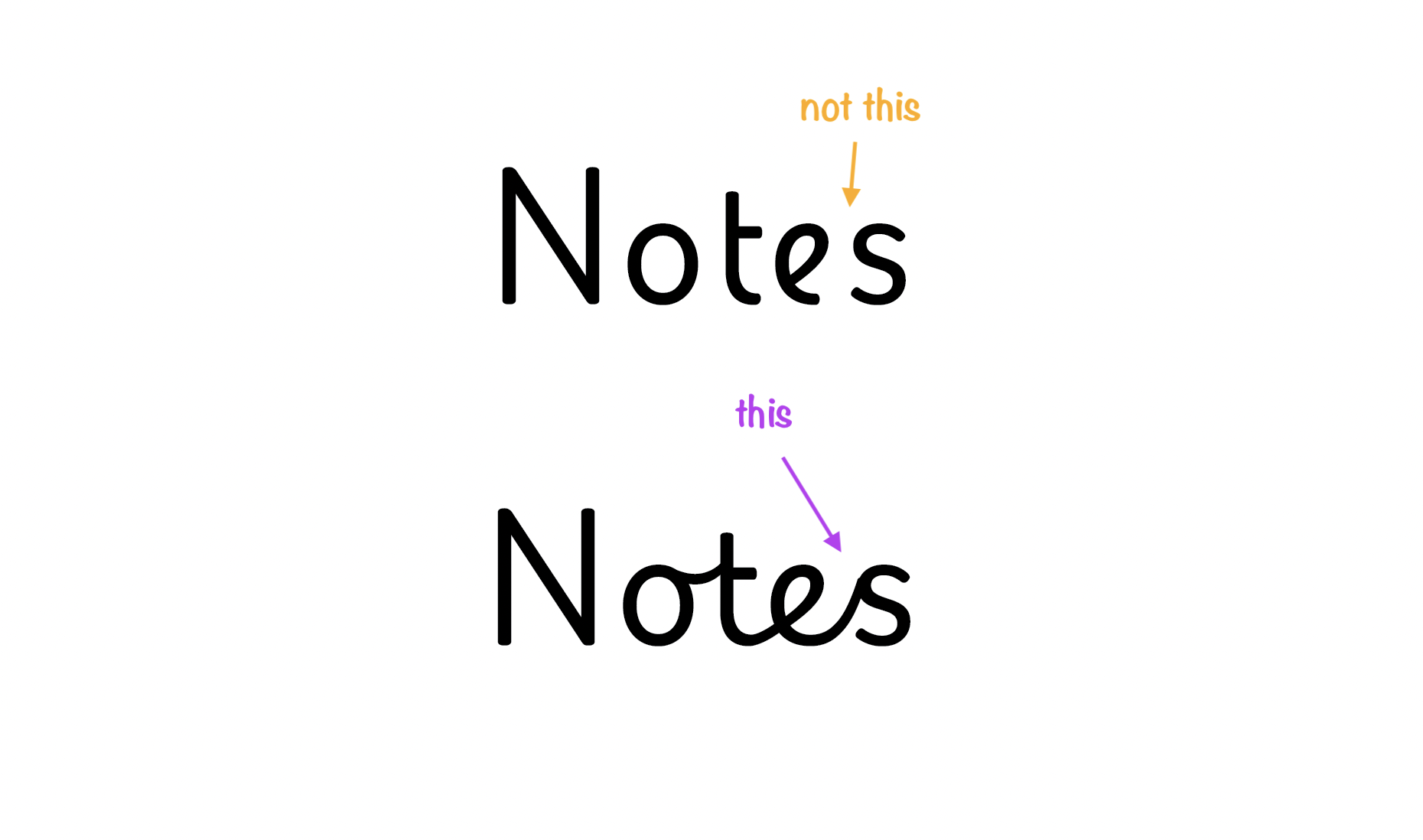
I needed the cursive, joined-up version for the worksheets I was making. InDesign rendered the letters, but would not join them up.
The OpenType Dead End
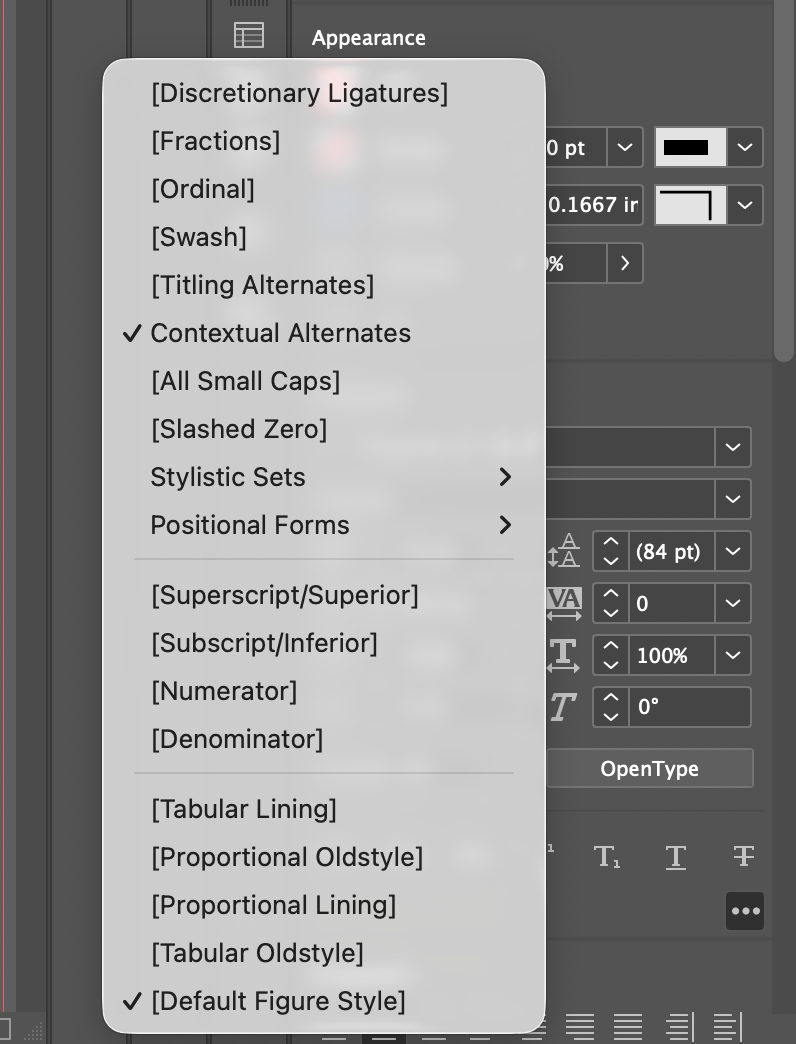
I did some online research which suggested changing OpenType settings in the Character panel. Ligatures on, ligatures off. I went through all of the options and still, nothing helped. Infuriatingly Photoshop worked well out of the box so it wasn’t a web vs desktop issue. I even tried using the CC version of the font as well as the one directly installed in the system. Nothing helped.
In the end I doubled down on generating the PDFs in the app, and that was that for a while.
The Fix: The World-Ready Composer (and the Two Paragraph Panels)
Months later, while looking for something unrelated, I stumbled upon TypeTogether’s official Playwrite setup instructions. Turns out there’s a specific setting you need to tick in InDesign’s Paragraph panel. I needed to switch from the default Adobe Paragraph Composer to Adobe World-Ready Paragraph Composer 🙄 Yeah, I too am still confused why that isn’t the default.
Lo and behold! The issue was fixed. Afterwords I ended up doing some other work for a few months and then last week got back to the handwriting resources. I needed the fix in a new document. Proud of myself for remembering what the issue was, I went into the Paragraph panel… only to find the menu wasn’t there. Whaaaaat?!
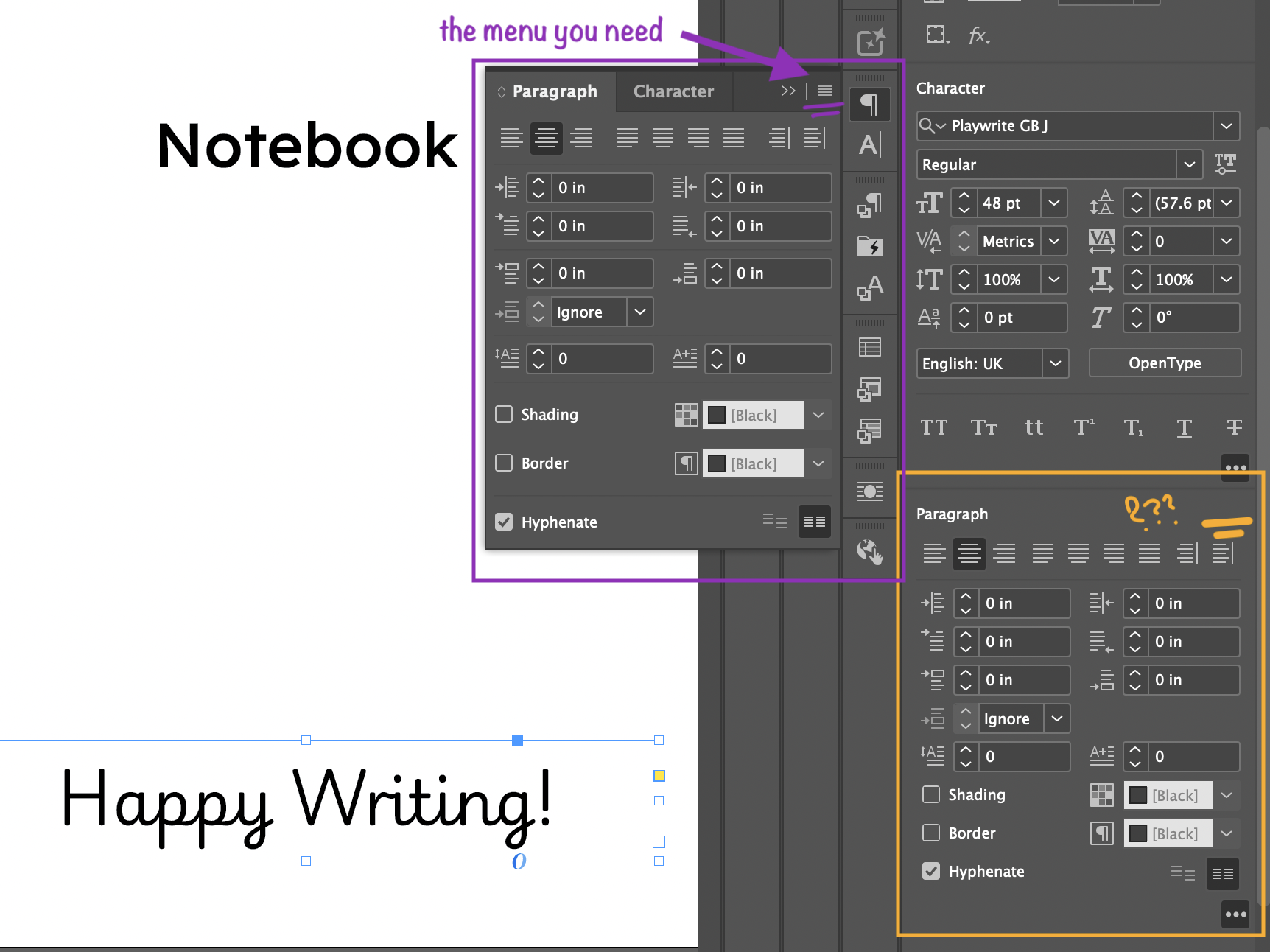
After a bit of searching I figured it out eventually. Turns out, you have to use the Paragraph Panel (Window > Type & Tables > Paragraph menu) to get to the menu, NOT the Paragraph section in the Properties panel… I mean every single other field in those two panels is exactly the same, but for some reason, the menu exists in just one. Go figure. Classic Adobe.